

Home
A key to conquer the (open source) world.

Main navigation

  • Home
  • About Us
    • About this website
    • About_me
    • Family rivalry
  • Gurus
  • Tutorials
User account menu
  • Log in

Breadcrumb

  1. Home

🖥️🐧 New to Linux? Here’s Exactly What to Install — and Why

Hero image for keyhole tutorials.

Start Your Linux Journey Confidently

Thinking about trying Linux but feeling overwhelmed by all the distributions, apps, and tools? You’re not alone. Linux offers endless possibilities, but starting with the right setup makes all the difference.
This guide cuts through the noise and shows what to install as a beginner — from essential system updates to must-have apps for browsing, productivity, media, and development. More importantly, you’ll learn why each tool matters, so your Linux setup actually works for you, not just a checklist.
New to Linux

🛡️🐧 Choosing a Safe Beginner Linux Distro

Starting with the right Linux distribution is key to a smooth experience. Some enterprise-focused distros like Red Hat Enterprise Linux and CentOS are powerful but come with a steep learning curve. For beginners, the goal is a stable, easy-to-use system that works out of the box.

Top beginner-friendly options:

  • Ubuntu – Clean desktop, huge community support, LTS releases for long-term stability.
  • Linux Mint – Familiar Windows-like interface, simple setup, great for newcomers.

Why these distros work for beginners:

  • Stable and well-supported
  • Friendly graphical interfaces
  • Built-in software managers
  • Regular security updates
  • Strong online communities

Pro Tip: Start with Ubuntu if you want the easiest path to learning Linux without frustration. Its popularity means tutorials and fixes for almost any issue are just a click away.

🟠🐧 Why Choose Ubuntu?

Ubuntu is beginner-friendly, reliable, and extremely well-documented. Here’s why it’s often the first choice for Linux newbies:

  • Long-Term Support (LTS): Up to five years of updates and security patches.
  • Wide hardware compatibility: Works on most laptops and desktops.
  • Huge community: Forums, tutorials, and guides make troubleshooting simple.
  • Debian-based foundation: Access thousands of reliable software packages.

In short, Ubuntu grows with you. Start simple and explore advanced tools when you’re ready.

🛠️💻 Essential Software Every Beginner Needs

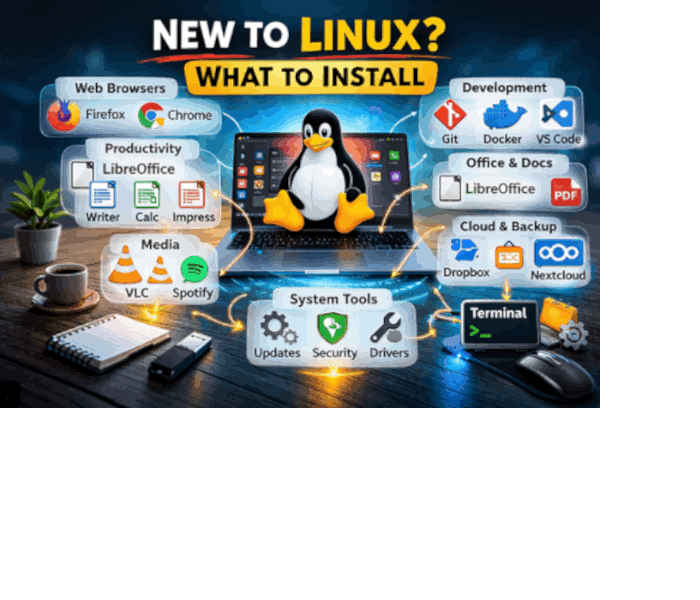
Once your Linux distro is installed, a few key applications can make your life much easier. Here’s a starter toolkit:

Productivity & Office:

  • LibreOffice – Documents, spreadsheets, presentations (compatible with Microsoft Office files)
  • OnlyOffice – Cloud-based alternatives for collaboration

Web Browsing:

  • Firefox – Fast, secure, and open-source
  • Google Chrome – Familiar interface and extensions

Media Tools:

  • VLC Media Player – Plays almost any video or audio format
  • Rhythmbox / Spotify – Music library and streaming options
  • Audacity – Record and edit audio
  • Kdenlive – Beginner-friendly video editing

Graphics & Creativity:

  • GIMP – Image editing and graphics design

Development & Coding:

  • Visual Studio Code – Text editor for programming and scripting
  • Git / Docker – Essential tools for developers

Quick Tip: Focus on essentials first. Avoid overloading your system with too many apps — you can always install more later.

🧰💻 Additional Tools for Windows Switchers, Developers, and Students

Windows switchers:

  • Wine – Run some Windows apps
  • VirtualBox – Run a full Windows system inside Linux
  • Samba – Access Windows network drives

Developers:

  • Terminal utilities: htop, tmux
  • Programming environments: Python, Node.js, Java
  • Version control: Git
  • Containers & virtualization: Docker

Students:

  • Note-taking & research: Zotero, Anki
  • Math & science: LibreOffice Math, GNU Octave
  • Cloud storage: Dropbox, Nextcloud

Pro Tip: Tailor Linux to your needs. Beginners don’t need everything at once; install tools as you go.

🛠️❗ Troubleshooting Basics

Even beginner-friendly Linux distros can have issues. Here’s a simple way to troubleshoot:

  1. Monitor your system: Use System Monitor or commands like top and htop to check performance.
  2. Fix software issues: Use package managers like APT or Snap.
  3. Check logs: Look in /var/log/ for errors and warnings.
  4. Ask the community: Forums like Ask Ubuntu or distro-specific guides are gold mines.

Pro Tip: Approach problems methodically. Troubleshooting is part of learning Linux — it builds confidence and skills.

🗂️✏️ Office Alternatives

Linux has excellent office alternatives if you’re leaving Windows:

  • LibreOffice – Full office suite (Writer, Calc, Impress)
  • OnlyOffice – Cloud-based, collaborative tools

Note: Always review Microsoft Office files when opening them in Linux office suites. Minor formatting issues can occur, so double-check documents before sharing.

🌐🤝 Embracing the Open-Source Philosophy

One of the best things about Linux is the open-source philosophy. Open-source software is built on collaboration, transparency, and freedom. By using Linux, you not only access free, high-quality tools, but you also join a global community that values learning, sharing, and improving technology together.

Think of Linux as more than an operating system: it’s a platform to explore, create, and grow. Your choices and contributions matter.

✅ Key Takeaways for Linux Beginners

  • Start with a safe, beginner-friendly distro like Ubuntu or Linux Mint.
  • Install essential software for browsing, productivity, media, and creativity.
  • Customize your system with tools for Windows switchers, developers, and students.
  • Learn basic troubleshooting to confidently manage your Linux system.
  • Embrace the open-source philosophy and join a collaborative, global community.


Back to the tutorial list.

Author.

Categories
Open source News
Linux
Fri, 02/13/2026 - 16:04

Managed ad1

RSS feed
Powered by Drupal